Microsoft 365 Security  ·  Under 5 Minutes

Your M365 Tenant.
X-rayed in minutes.

SafeScan connects read-only to your Microsoft 365 tenant and checks for data exposure, identity risks, compliance gaps, Teams configuration, licensing inefficiencies, and Copilot readiness — all in under 5 minutes. No data is stored; nothing in your environment is modified.

< 5 min Full tenant scan
6 Scan domains
Read-only Zero tenant changes
Zero Data stored
Read-only connection Nothing modified · Nothing stored
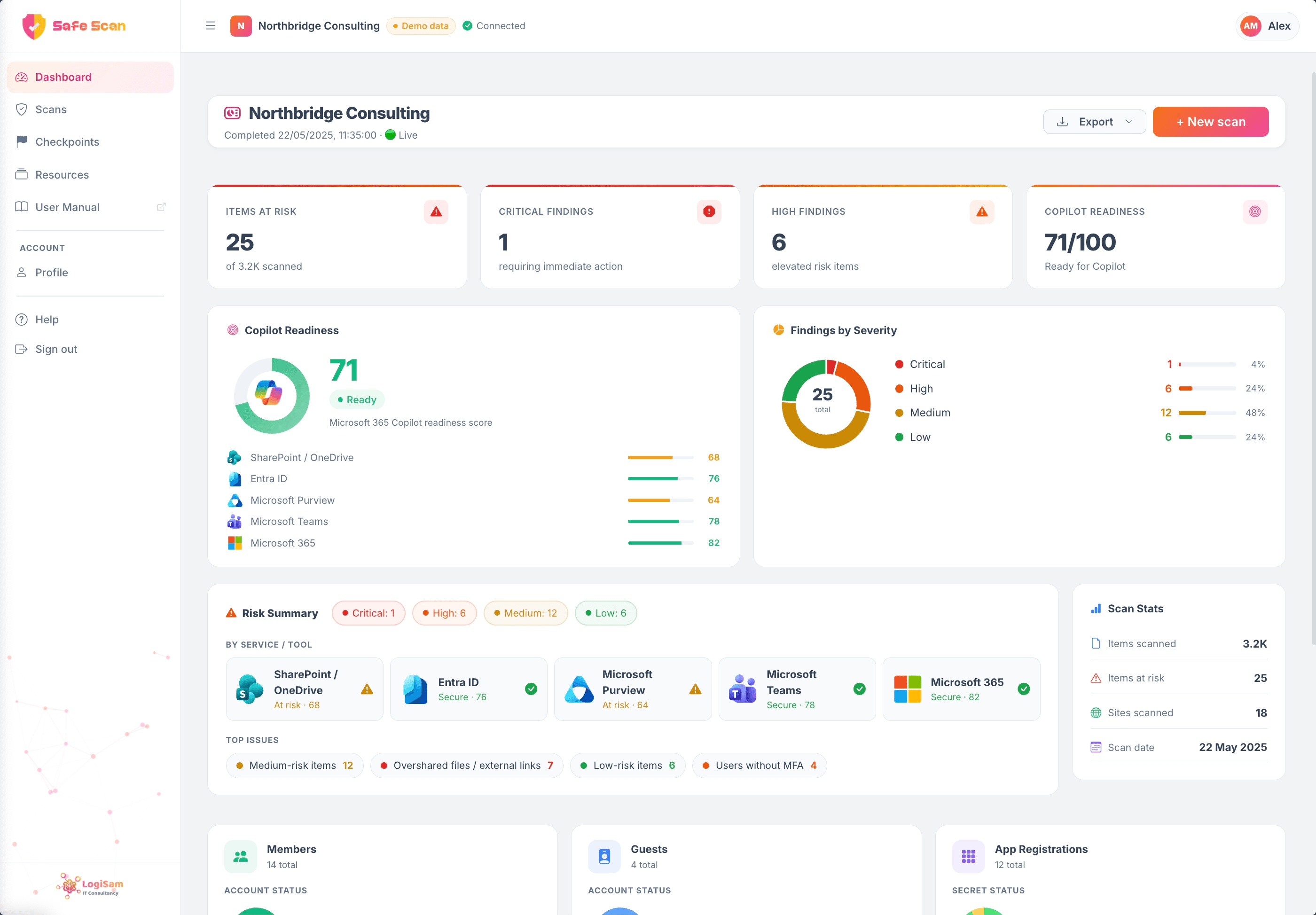
SafeScan dashboard overview showing tenant stats, findings by severity and all security checkpoints
Live Security Checkpoints
Read-only Microsoft Graph access
No data stored or exported
Zero changes to your tenant
Results in under 5 minutes
Microsoft 365 native

Safe by design — read-only, zero footprint

SafeScan authenticates via Microsoft Graph with read-only delegated permissions. It never writes to your tenant, never exports your data, and never stores anything beyond your session. Every scan is ephemeral — you get the insights, we keep nothing. Your IT and security team can verify the exact permissions requested before connecting.

Six domains. One scan.

SafeScan checks your entire Microsoft 365 posture across six critical areas — each scored, explained, and prioritised.

Data Exposure

Identify SharePoint sites, files, and OneDrive content that is overshared, externally accessible, or exposed to Copilot without governance.

SharePoint risk scan
External links & guest sharing
OneDrive exposure
Copilot exposure risk score
Over-sharing report
Identity & Access

Surface MFA gaps, stale admin accounts, guest accounts with excessive access, and missing Conditional Access policies.

MFA coverage by user
Stale admin detection
Guest account audit
Conditional Access gaps
Compliance

Check whether DLP policies, audit logging, sensitivity labels, and retention policies are configured to protect your organisation's data.

DLP policy coverage
Audit log status
Sensitivity label usage
Retention policy check
Microsoft Teams

Assess Teams configuration risks — external access policies, anonymous meetings, sprawl of unused teams, and app governance gaps.

External access settings
Anonymous meeting policy
App governance review
Channel & team sprawl
Licensing

Identify inactive licences, over-provisioned plans, and inefficient SKU combinations — surface real cost-saving opportunities.

Unused licence detection
Inactive user analysis
SKU optimisation flags
Copilot Readiness

Measure how ready your tenant is for Microsoft 365 Copilot — data hygiene, permissions posture, and governance blockers.

Copilot exposure risk score
Over-sharing before Copilot
Governance readiness
Before/after comparison
SCREEN 1 — Scans
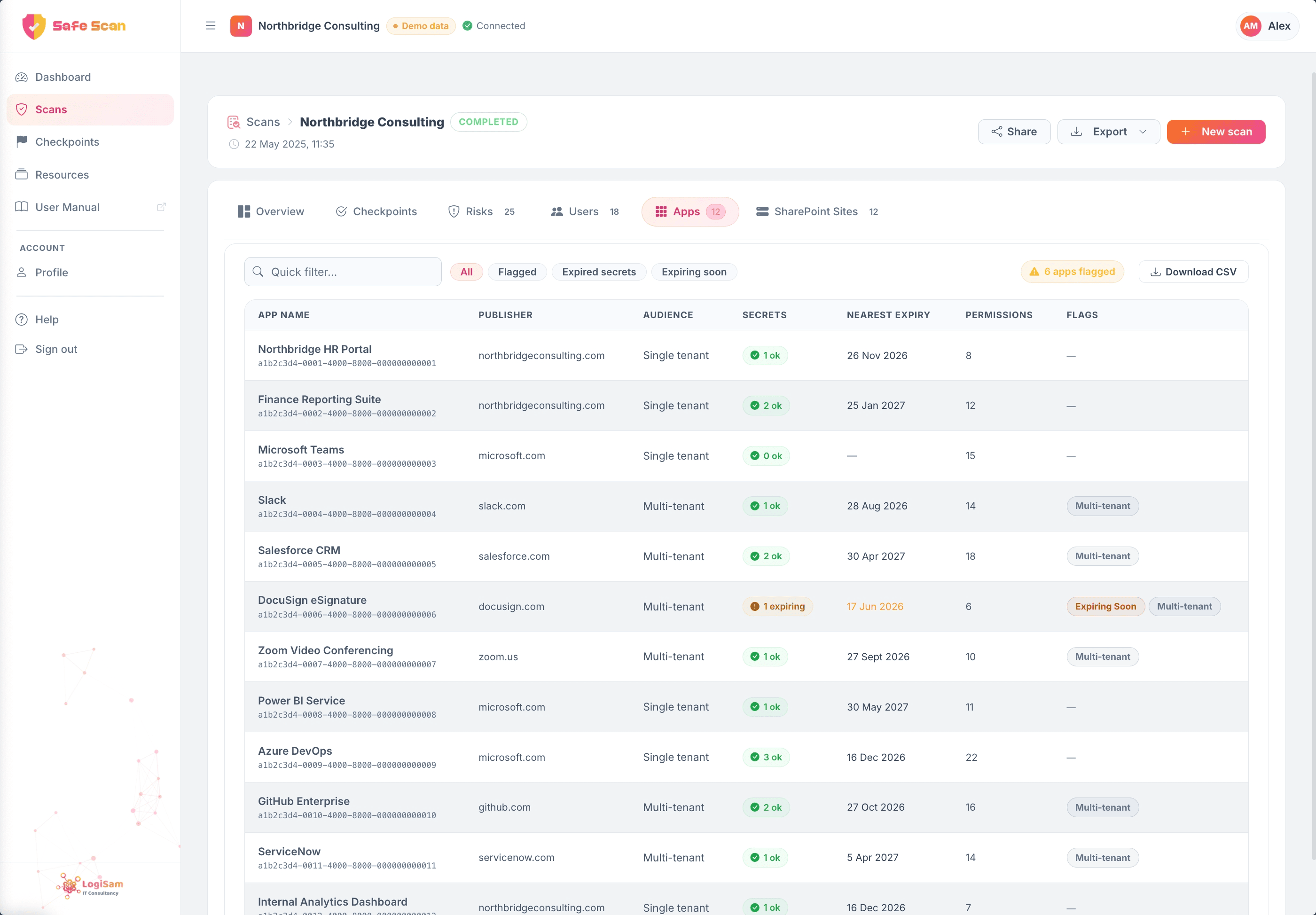
SafeScan Scans page showing completed tenant scans with risk scores and View report links
Click to enlarge
1

Scan history — risk scores at a glance

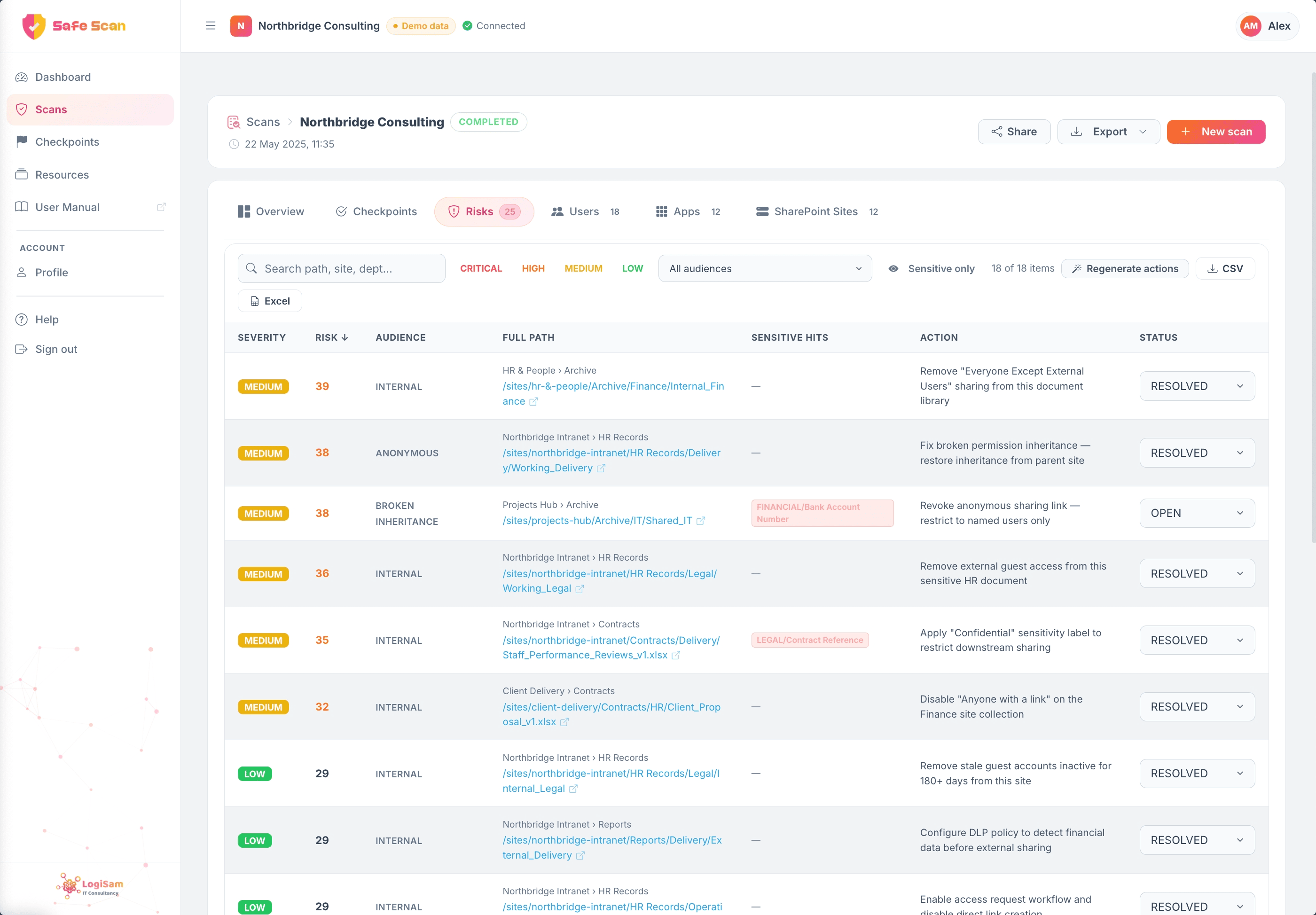
Every scan is logged with a risk score out of 100, the number of items examined, and a breakdown of medium and low-severity findings. View historical scans to track improvement over time or benchmark before and after a remediation project.

Each completed scan links to a full report — giving you a permanent record of your tenant's security posture at that point in time.

Risk Score /100 Scan History Completed Status
2

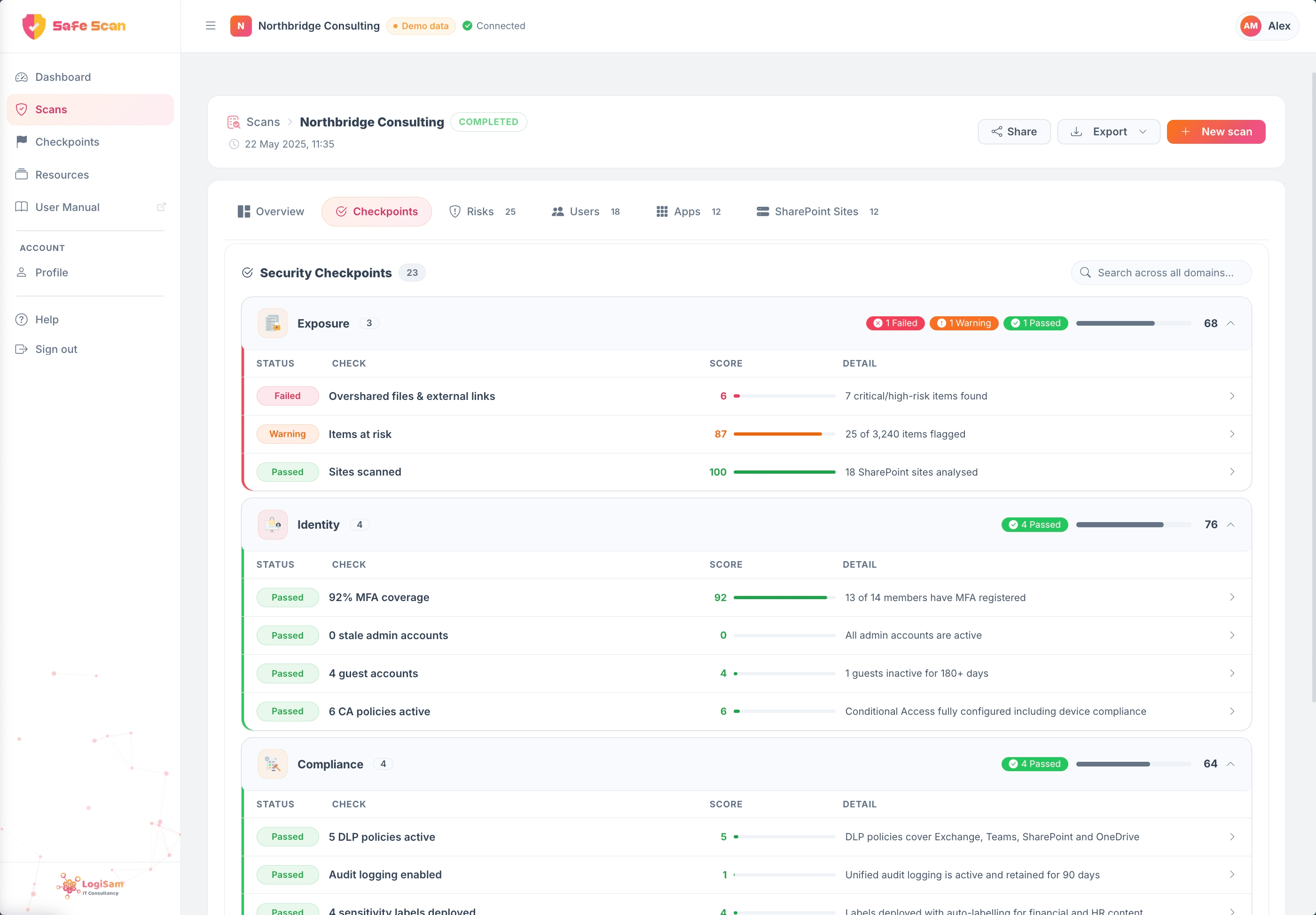
Full checkpoint coverage — domain by domain

The security checkpoints view gives you the complete picture across every scanning domain — Data Exposure, Identity, Compliance, Teams, Licensing, and Copilot Readiness. Each checkpoint is scored out of 100, shows a clear status badge (Passed, Warning, or Failed), and surfaces a brief summary of exactly what was found.

Filter by domain to zoom into a specific risk area, or scroll through the full list to see your tenant's complete security posture at a glance. Click any row to drill into the full checkpoint detail, remediation steps, and raw data.

20+ checkpoints Filter by domain Score & status
SCREEN 2 — Security Checkpoints
SafeScan security checkpoints view showing all checks across 6 domains with scores and pass/warning/fail status badges
Click to enlarge
SCREEN 3 — Checkpoint Detail
SafeScan DLP Policies checkpoint detail showing 0/100 Failed status with explanation of the gap and its impact on data security
Click to enlarge
3

Deep dive into each checkpoint — score, context, risk

Click any checkpoint to open its full detail view. The Checkpoint tab explains exactly what was found — for example, the DLP Policies check showing 0/100 Failed means no Data Loss Prevention policies are configured. SafeScan explains the risk in plain English: what data could be exposed, and why it matters before Copilot goes live.

Every finding includes the raw score, the finding context, and a clear explanation of the compliance or security gap — no security expertise required to understand the results.

What was found Failed: 0/100 DLP & Compliance
4

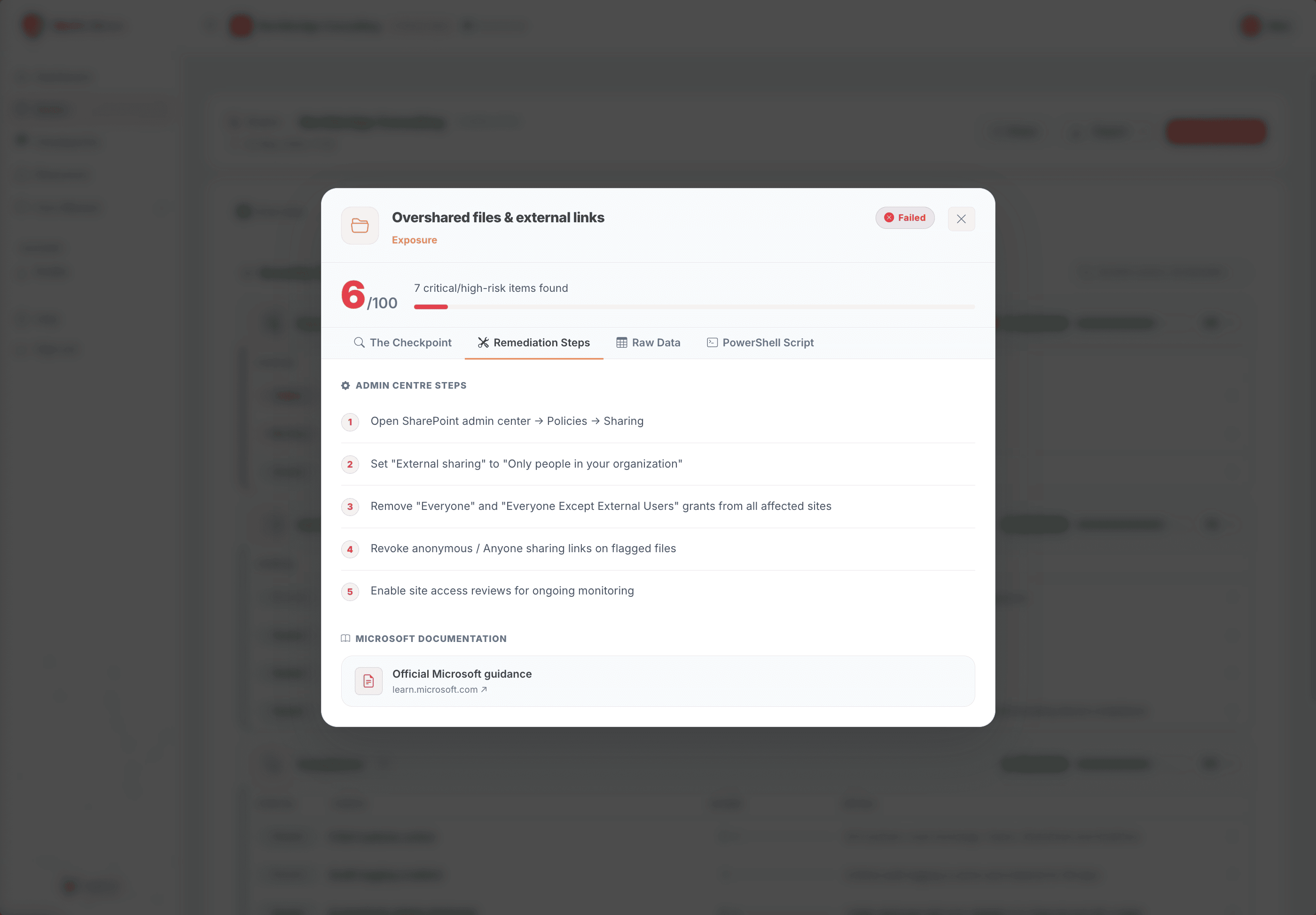
Step-by-step fix paths — Admin Centre, PowerShell & Microsoft docs

The Remediation Steps tab turns each finding into an actionable fix. For the DLP policy gap, SafeScan lists numbered steps through the Microsoft Purview Compliance Portal — exactly where to click, what to configure, and what values to set. Your IT team can follow the guide without any prior DLP knowledge.

Every step links to the official Microsoft documentation so your team can verify the guidance. The PowerShell Script tab provides a ready-to-run script to query the same data, verify the finding independently, and automate remediation at scale.

Numbered steps PowerShell script Microsoft docs links
SCREEN 4 — Remediation Steps
SafeScan DLP Policies remediation steps showing numbered Admin Centre instructions and official Microsoft documentation links
Click to enlarge
SCREEN 5 — Raw Data
SafeScan Raw Data tab showing the JSON API response for the Sensitivity Labels checkpoint
Click to enlarge
5

Full transparency — the raw API data behind every score

For every checkpoint, the Raw Data tab exposes the exact JSON response returned by the Microsoft Graph API — the same data SafeScan used to calculate the score. Technical teams and security auditors can verify every finding at the source, cross-reference results, or export the JSON for deeper analysis.

No black box. No magic. If a checkpoint scores 46/100 on Sensitivity Labels, you can open the raw data and see precisely which labels exist, how they're configured, and which policy gaps drove the score — directly from Microsoft's own API response.

JSON API response Fully auditable Zero black box
6

PowerShell scripts — verify, automate, repeat

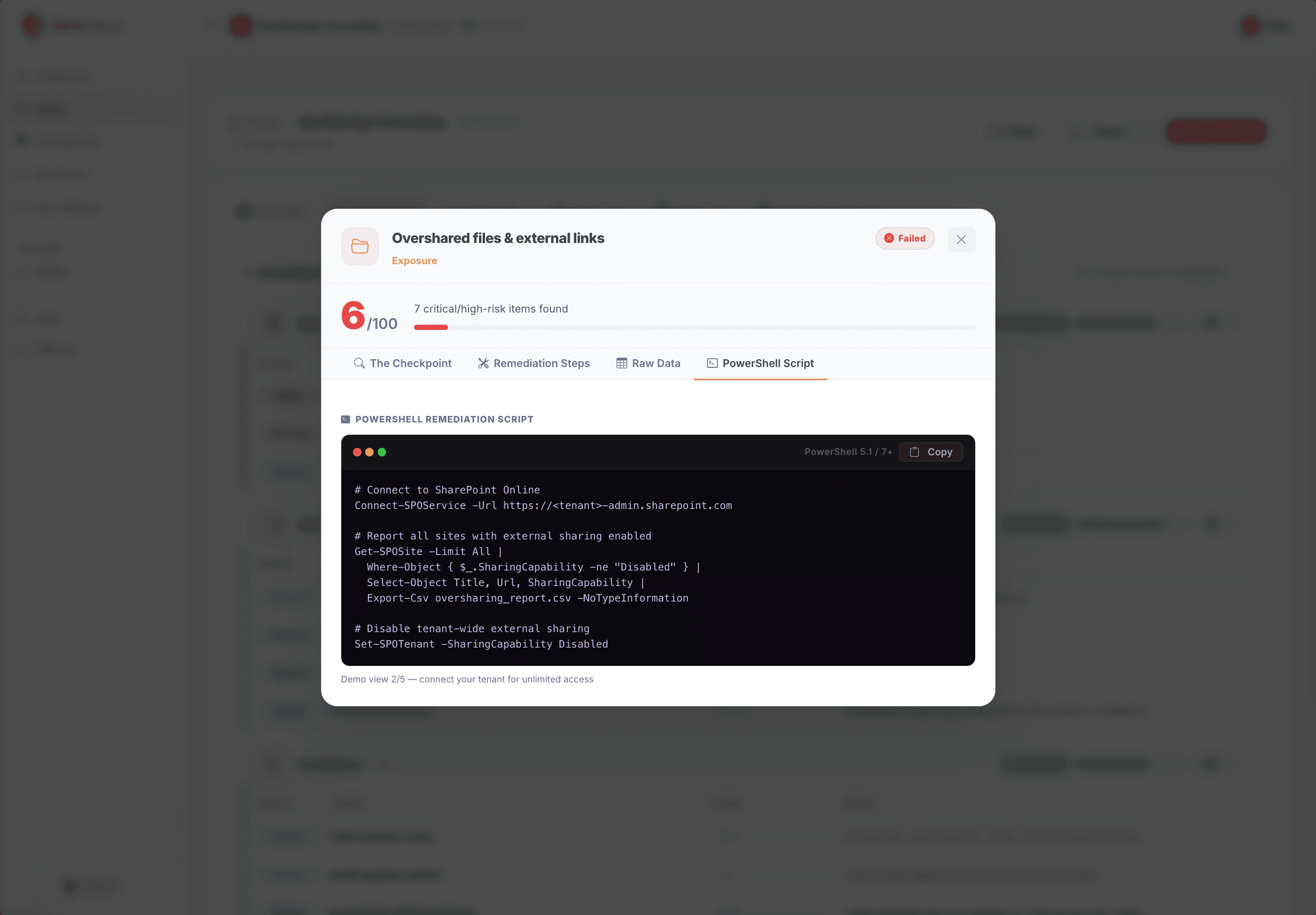
Every checkpoint includes a PowerShell Script tab with a pre-written, ready-to-run script that queries the same Microsoft Graph data SafeScan used to produce the score. Your IT team can run it independently to verify findings, reproduce the scan logic, or schedule it as a recurring compliance check.

Scripts are commented throughout and include links to the relevant Microsoft documentation — so your team understands not just what to run, but why each query matters for Copilot readiness and tenant security posture.

Ready-to-run script Schedule & repeat Microsoft docs included
SCREEN 6 — PowerShell Script
SafeScan PowerShell Script tab showing a ready-to-run script for the Conditional Access checkpoint with comments and Microsoft documentation links
Click to enlarge

Every check, across every domain

SafeScan runs all of these checks automatically — scored, explained, and ready to act on.

SharePoint Risk Scan
External Links
OneDrive Exposure
Copilot Exposure Risk Score
Over-Sharing Report
Before / After Comparison
Remediation Priority Queue
MFA Coverage
Stale Admins
Guest Accounts
Conditional Access
DLP Policies
Audit Logs
Sensitivity Labels
Retention Policies
Teams External Access
Anonymous Meetings
App Governance
Channel Sprawl
Licence Utilisation

From zero to report in three steps

No agents, no installations, no lengthy onboarding. Connect, scan, act.

1
Connect your tenant

Authenticate via Microsoft Graph with read-only permissions. SafeScan requests only the scopes it needs — your IT team can review every permission before granting access.

2
Select & launch your scan

Choose which modules to run — Data Exposure, Identity & Access, Compliance, Teams, Licensing, and Copilot Readiness. Hit Launch and the scan completes in under 5 minutes.

3
Review, remediate, repeat

Your scored report lists every finding with a plain-English explanation, step-by-step Admin Centre remediation path, and a ready-to-run PowerShell script. Re-scan anytime to track improvement.

COPILOT SAFESCAN

Ready to see what's hiding in your tenant?

Get a live demo of SafeScan on your own Microsoft 365 environment. We'll walk you through the findings, explain what they mean, and show you exactly how to fix them.

Copilot SafeScan — FAQs

  After Your SafeScan

Got your results? These free tools are the natural next step.

Full AI Readiness Assessment → Calculate Your Copilot ROI → Discuss Results with an Expert →